Is it possible to manually create a test alert in Panther?
Last updated: July 8, 2025
QUESTION
I would like to manually create a test alert in Panther, and have it route to the appropriate destinations. Is this possible?
ANSWER
Panther does not currently support manually creating test alerts. However, it is possible to create a test alert with a workaround using a scheduled rule.
WORKAROUND
You'll create a Scheduled Search that always returns true, then a scheduled rule associated to that Scheduled Search, which routes test alerts to your desired destination.
Create a Scheduled Search that always returns true.
Navigate to Search -> Data Explorer
Enter a query that always returns true, e.g., simply
SELECT trueorSELECT 1.Click Save as.
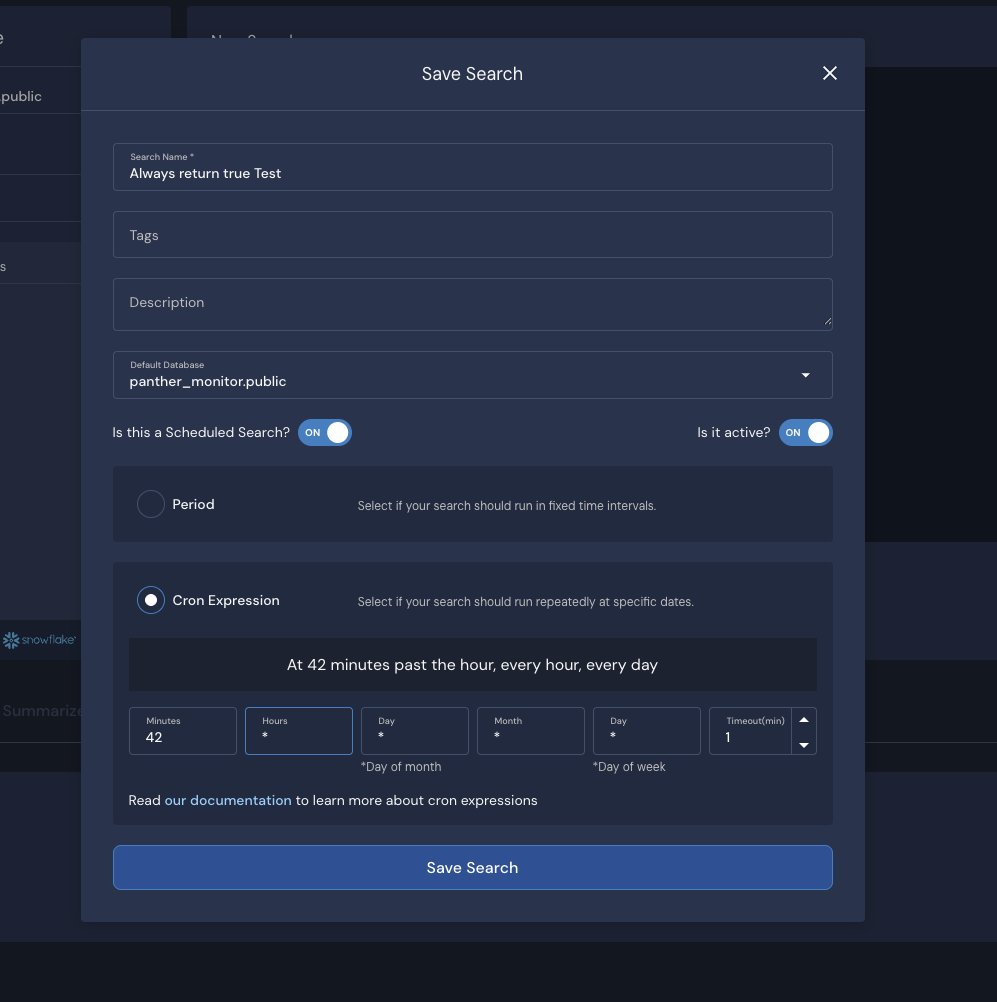
Set Is this a Scheduled Search? to ON.
Set Is it active? to ON.
Click Cron Expression, then set the query to run however many minutes past the hour, every hour, every day.
The number of minutes past the hour will depend on when you are sending the test alert. For example, if the current time is 2:40PM, set it to 42 minutes past the hour. In about 2 minutes time, the scheduled query will run, which will trigger the scheduled rule.
Click Save Search once the query has been configured.
Create a scheduled rule.
Navigate to Detections -> Create New -> Scheduled Rule.
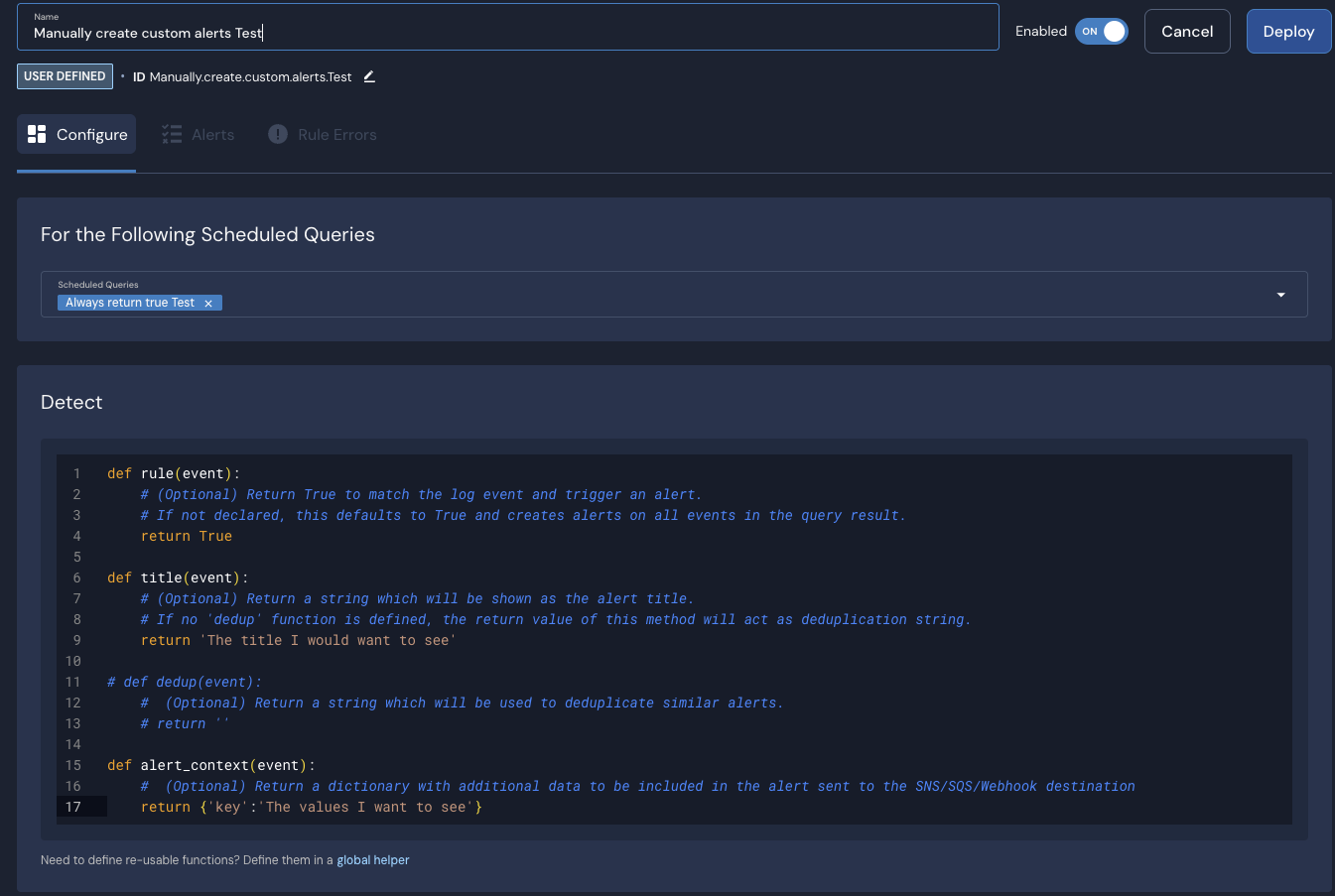
Within your scheduled rule, configure a title you would like returned.
In the For the Following Scheduled Queries dropdown, select the Scheduled Query that always returns true that you created above.
To ensure the alert gets sent to your desired destination (regardless of that destination's configuration), click the drop-down for Optional Fields and set the Destination Overrides to the desired destination.
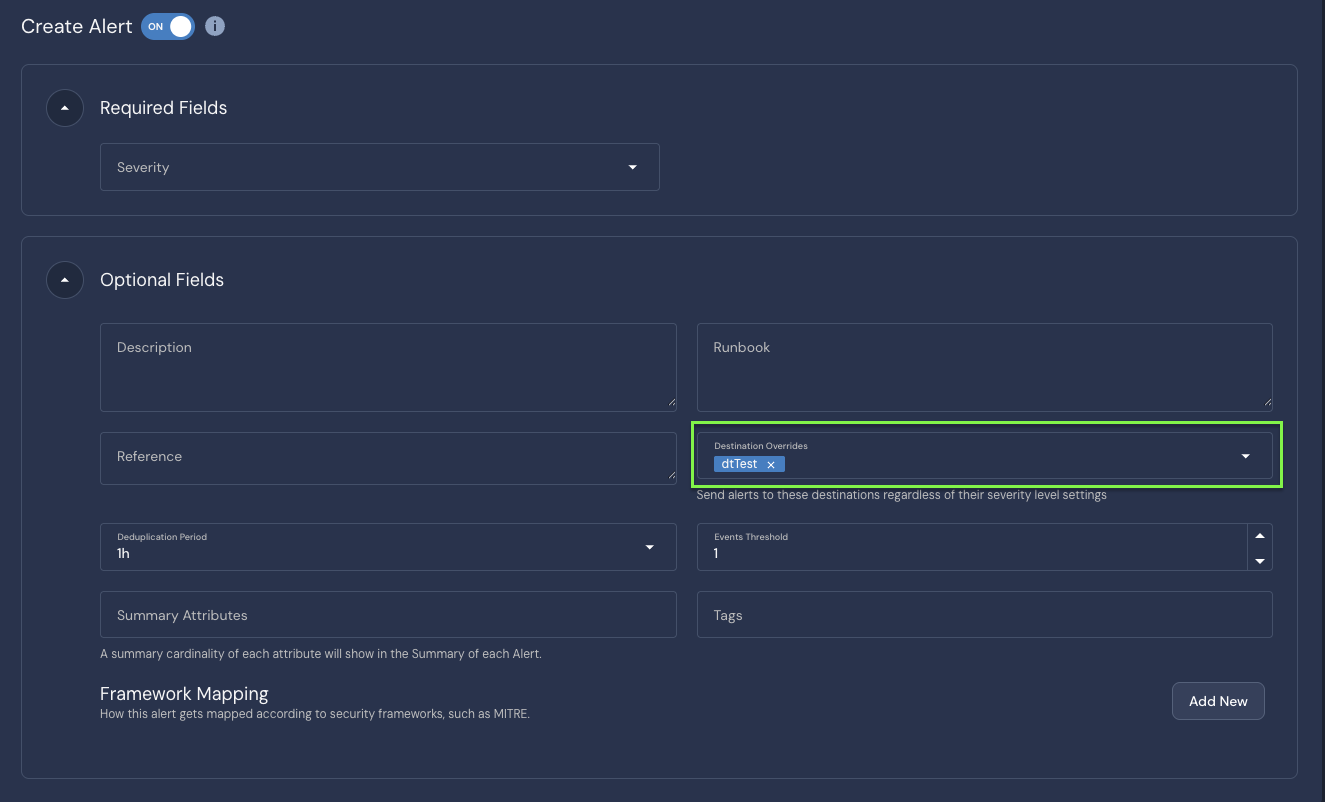
Ensure Create Alert is turned ON.
Check that the Rule is Enabled and click Deploy.
From here, feel free to adjust the number of minutes past the hour in the Cron Expression of the Scheduled Search to work with your testing (in Step 1).